Unlock the secrets to enhancing your Roblox experience with stunning visual shaders. Many gamers wonder if the popular platform supports advanced graphical effects. This comprehensive guide dives deep into the world of Roblox shaders, explaining what they are, how they function, and the practical steps to implement them for a more immersive gameplay. Discover the best tools and techniques to bring a new level of realism and aesthetic appeal to your favorite Roblox games. Whether you are seeking a cinematic look, improved lighting, or vibrant colors, understanding shaders is crucial. We address common challenges such as performance impact and compatibility issues, providing solutions for a smooth, visually upgraded experience. This resource is perfect for gamers balancing life and play, looking to optimize their fun without hassle or breaking the bank on hardware. Get ready to transform your Roblox adventures today.
What are shaders and how do they impact Roblox visuals?
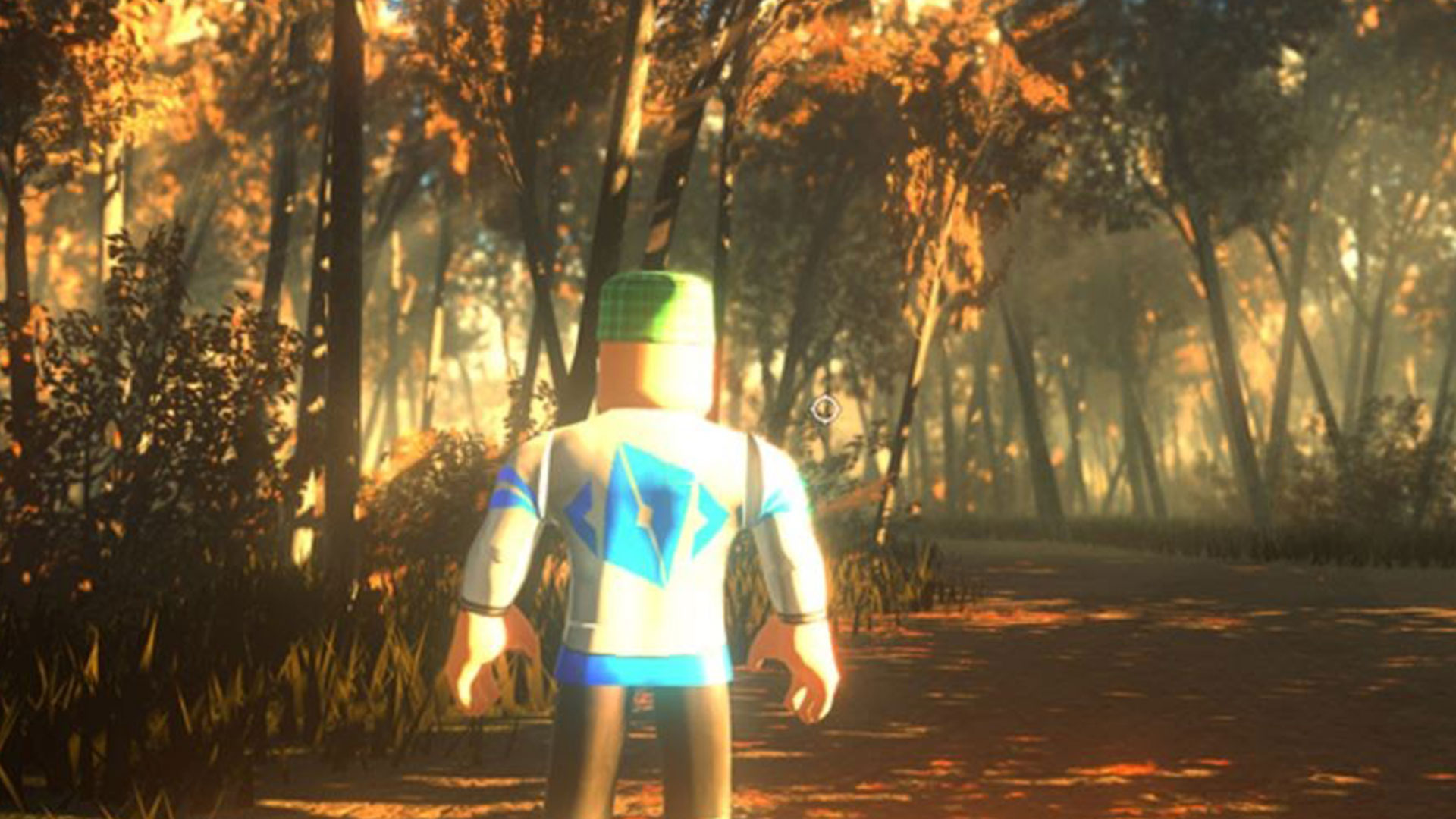
Shaders are small programs that run on your graphics card, dictating how light, shadows, reflections, and colors are rendered in a game. For Roblox, which uses its own rendering engine, traditional shaders as seen in other PC games don't directly apply. However, shader-like effects can dramatically improve lighting, add realism to water, enhance textures, and create dynamic visual moods, transforming a basic scene into something truly immersive and engaging for the player.
Does Roblox officially support external shader mods like Reshade?
Officially, Roblox does not support or endorse the use of external third-party software like Reshade for modifying game visuals. While Reshade primarily acts as a post-processing injector and doesn't alter game files directly, using any unofficial client modifications technically goes against Roblox's Terms of Service. Players should proceed with caution and be aware of potential risks, though many users have reported successful and ban-free experiences with Reshade. It's a gray area many adult gamers navigate to enhance their visual experience.
What are the main methods to get shader-like effects on Roblox?
There are two primary approaches for achieving shader-like effects in Roblox. First, and most popular, is using external post-processing injectors like Reshade, which applies visual filters over the game's rendered image. This method can add bloom, ambient occlusion, improved anti-aliasing, and color grading. Second, developers within Roblox Studio can implement advanced lighting, custom textures, particle effects, and specialized skyboxes to create visually stunning environments that mimic shader effects natively within their games.
How can Reshade enhance my Roblox gameplay experience?
Reshade can significantly enhance your Roblox gameplay by introducing a wide array of graphical improvements. Imagine richer colors, deeper shadows that create more atmosphere, subtle reflections on surfaces, and cinematic depth of field. For many busy gamers, these enhancements elevate a quick play session into a more visually rewarding and relaxing experience. It brings a fresh look to familiar games, making the virtual world feel more vibrant and engaging, especially during those precious hours carved out for gaming.
Are there performance implications when using shader mods with Roblox?
Yes, absolutely. Applying external post-processing shaders, especially complex ones through tools like Reshade, will inevitably consume more of your graphics card's resources. This can lead to a decrease in frame rate, particularly on older or budget-friendly hardware. Balancing visual fidelity with smooth performance is key. Gamers might need to experiment with different presets, reduce in-game graphics settings, or upgrade components if they want a high-end visual experience without sacrificing playability. Finding that sweet spot ensures the relaxation isn't replaced by frustration.
What are some popular Reshade presets specifically designed for Roblox?
Many community-created Reshade presets are available that are specifically tailored for Roblox. Popular options often focus on enhancing realism, vibrant colors, or cinematic looks. Some widely used presets include those that emphasize global illumination, subtle bloom effects, advanced anti-aliasing for smoother edges, and more accurate color grading. Searching for "Roblox Reshade presets" on platforms like YouTube or dedicated modding forums will yield numerous community favorites and installation guides, allowing you to quickly find a style that suits your preference.
Besides Reshade, what in-game settings can I tweak for better Roblox visuals?
Even without external mods, Roblox offers several in-game settings that can dramatically improve visuals. Maxing out your graphics quality slider within the Roblox client is the first step. Additionally, many Roblox games feature custom lighting, shadow settings, and texture quality options within their own game menus. Experimenting with your monitor's calibration, enabling high DPI scaling in Windows for crispness, and ensuring your graphics drivers are updated can also provide a noticeable visual boost without touching third-party software, making the most of your existing setup.
Ever fired up your favorite Roblox game and thought, 'Man, this could look so much better?' You're not alone. Many US gamers, especially those balancing work, family, and a precious few hours of gaming each week, crave that next-level visual immersion. We spend a lot of time in these virtual worlds – over 87% of US gamers play regularly, often clocking 10+ hours a week, and social gaming trends are massive this month. We want our games to look sharp, feel alive, and offer that extra layer of relaxation or excitement. But when it comes to Roblox, the question 'do shaders work on Roblox' pops up constantly. Traditional shaders, those fancy graphical effects that make PC games look stunning, aren't exactly built into Roblox's core engine. This can be a real pain point, especially when you see incredible visuals in other titles or on your friends' high-end gaming rigs.
The good news? While Roblox has its own unique way of doing things, and prioritizes accessibility over bleeding-edge graphics, there are legitimate methods and tools to significantly enhance your visual experience. You don't always need a brand-new, top-tier graphics card or hours of troubleshooting. This guide is your no-nonsense resource to understanding, implementing, and optimizing shader-like effects in Roblox. We'll help you get the most visual bang for your buck without turning your gaming session into a tech support nightmare. For those balancing gaming with real-life responsibilities, optimizing fun and visuals is key to making your limited gaming time count. Let's dive in and transform your Roblox world into the visually stunning playground you've always wanted.
What exactly are shaders and why are they tricky with Roblox?
Shaders are small, specialized programs that run directly on your graphics card. They dictate how light interacts with surfaces, how shadows are cast, how reflections appear, and ultimately, how colors and textures are rendered on your screen. Think of them as the artistic directors of your game's visuals, transforming raw 3D models into beautiful, lifelike (or stylized) scenes. In games like Minecraft or those built on engines like Unity or Unreal, you can often drop in shader packs that overhaul the entire visual pipeline, adding dynamic global illumination, realistic water effects, and cinematic depth of field.
However, Roblox is different. Its engine, built for performance, accessibility across millions of devices (including mobile, which dominates the market this month), and user-generated content, doesn't natively support this kind of direct, external shader injection in the same way. Roblox's engine handles its own lighting and rendering internally, prioritizing stability and cross-platform compatibility. This makes traditional 'shader packs' for Roblox a non-starter. Trying to force them directly would likely result in errors, crashes, or worse, potential security flags because you're attempting to modify core game files.
Do shaders natively work on Roblox? The official stance.
To be clear and concise: no, traditional shaders do not natively work on Roblox. Roblox's platform is designed with a strong emphasis on security, consistency, and a unified experience for its massive user base, which includes a significant portion of younger players. Allowing arbitrary external code to directly manipulate the rendering engine would introduce immense security risks and create an inconsistent user experience across different devices and game instances. Roblox's official policy generally discourages and does not support third-party modifications that alter the core game client or its rendering processes. This means you won't find an official 'shader settings' menu within the Roblox player itself, and the developers are very unlikely to implement direct shader pack support given their platform's foundational design principles.
How can I achieve 'shader-like' effects in Roblox? Exploring external tools.
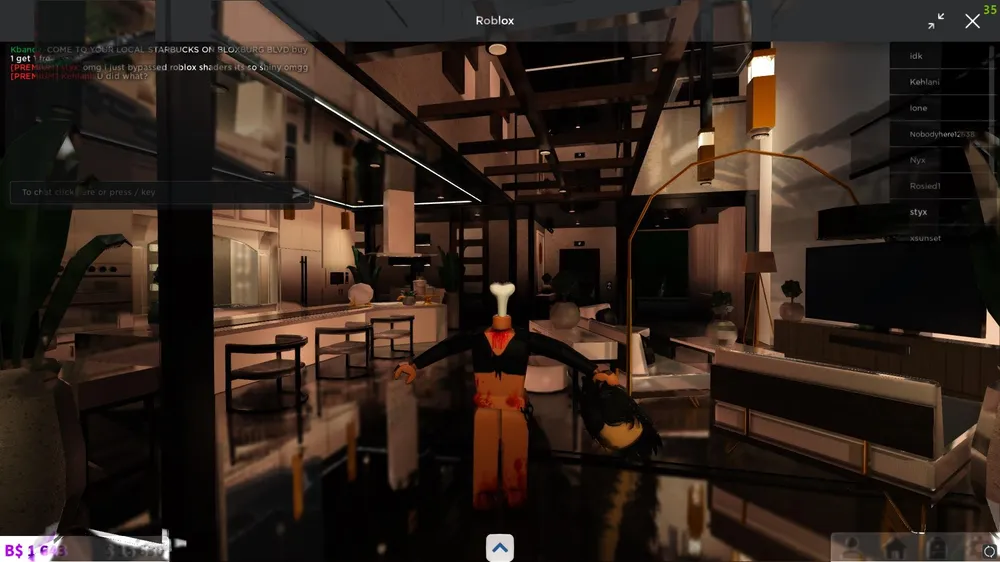
Despite the lack of native support, achieving visually enhanced, shader-like effects in Roblox is absolutely possible, primarily through two main avenues. The most popular and effective method involves using post-processing injectors like Reshade. Reshade doesn't alter Roblox's core files or rendering engine; instead, it acts as an overlay. It hooks into your graphics API (like DirectX) and applies a wide array of visual filters and effects after Roblox has rendered its frames but before they appear on your screen. This allows for bloom, ambient occlusion, color grading, improved anti-aliasing, and more, effectively making the game look like it has shaders.
The second method, which is often overlooked by players but crucial for creators, involves in-engine graphical enhancements. Talented Roblox developers can utilize Roblox Studio's powerful lighting engine, custom textures, detailed particle effects, and advanced skyboxes to create incredibly realistic or stylized visuals within their games. While not 'shaders' in the traditional sense, these in-game optimizations often achieve comparable aesthetic results, making the experience more immersive for everyone without requiring external software. For gamers seeking to support creators, looking for games with 'Future' or 'Voxel' lighting enabled can significantly elevate the visual quality.
Is using Reshade with Roblox safe and allowed? Understanding the risks.
This is where things get a bit nuanced for many US gamers who prioritize both fun and security. When discussing 'do shaders work on Roblox' via Reshade, the safety question is critical. Is it safe? Generally, yes, if downloaded from the official Reshade website. Reshade is a widely used and reputable tool across many PC games and doesn't contain malware. Is it allowed by Roblox? This falls into a gray area. Roblox's Terms of Service (ToS) prohibit unauthorized third-party software that modifies the client. Reshade, by injecting post-processing effects, technically falls under this umbrella. However, because Reshade primarily deals with visual overlays and does not provide an unfair gameplay advantage, alter game logic, or tamper with internal files in a malicious way, direct bans specifically for Reshade use are extremely rare. Many players, including a significant portion of adult gamers, use it without issues.
That said, it's vital to acknowledge that Roblox could theoretically detect and act upon its use. The risk is low but not zero. Always ensure you download Reshade from its official source to avoid malicious versions. If you're particularly concerned, stick to in-game graphical options or games developed with advanced visual settings.
What are the best Reshade presets for Roblox to make it look amazing?
Choosing the 'best' Reshade preset for Roblox is a bit like picking your favorite flavor of ice cream – it's subjective and depends on what visual style you're aiming for. However, certain types of presets consistently deliver stunning results and are popular within the Roblox community. Many gamers gravitate towards presets that enhance realism, vibrant colors, or a cinematic feel.
- Realistic/Natural Presets: These often focus on subtle ambient occlusion to add depth, improved anti-aliasing for smoother edges, and more balanced color correction. They aim to make the Roblox world feel more grounded and less 'blocky'.
- Vibrant/Cartoon Presets: If you prefer punchier colors, increased contrast, and a brighter aesthetic, these presets use techniques like vibrance, saturation, and advanced curves to make everything pop.
- Cinematic Presets: For those seeking a professional, film-like look, these often incorporate subtle film grain, depth of field (bokeh), lens flares, and advanced color grading (LUTs) to create a dramatic and immersive atmosphere.
Finding these usually involves searching platforms like YouTube, Reddit, or dedicated Roblox modding communities. Look for videos showcasing different presets and offering download links. Always check user reviews and instructions carefully, as some presets might require specific Reshade effects to be installed. Experimentation is key to finding your perfect visual upgrade.
How do I install Reshade for Roblox step-by-step? A practical guide.
Installing Reshade for Roblox is straightforward, even for those who aren't tech gurus. Follow these steps to get your game looking fantastic:
- Download Reshade: Go to the official Reshade website (reshade.me) and download the latest version of the installer. Avoid third-party sites.
- Run the Installer: Launch the Reshade installer. It will ask you to 'Click here to select a game and manage its Reshade installation.'
- Select Roblox: In the list, look for 'RobloxPlayerBeta.exe'. This is usually located in
C:\Users\[YourUsername]\AppData\Local\Roblox\Versions\followed by a folder likeversion-xxxxxxxxx(the folder name changes with updates, so you might need to find the current one). If you can't find it, use the 'Browse' button to navigate to it manually. - Choose Rendering API: Reshade will ask which rendering API Roblox uses. For most modern systems and Roblox versions, select 'Direct3D 10/11/12'.
- Select Shader Packs: Now you'll see a list of shader effects. You can select all of them for maximum flexibility or choose a few popular ones to start, such as 'DisplayDepth', 'SweetFX', 'MXAO' (Marty McFly's Ambient Obscurance), 'Bloom', 'Clarity', 'Vibrance', and 'FilmicPass'. Don't worry, you can always add or remove them later. Click 'OK' to proceed.
- Finish Installation: Reshade will now install the selected shaders. Once done, close the installer.
- Launch Roblox: Open your Roblox game as you normally would. You should see a small gray banner at the top of your screen during loading, indicating Reshade has loaded.
- Configure Reshade: Once in-game, press the 'Home' key (usually above the arrow keys) to open the Reshade overlay. Follow the on-screen tutorial to set up a new preset, select your desired effects, and tweak their settings. You can save your custom preset for future use.
Remember to update Reshade periodically, especially after major Roblox updates, to ensure continued compatibility.
What impact do these visual enhancements have on game performance?
This is a crucial consideration for any gamer, especially those who balance gaming on existing hardware rather than constantly upgrading. Applying graphical enhancements, whether through Reshade or in-game settings, will almost certainly impact your game's performance. Shaders, even post-processing ones, require additional computational power from your GPU. The more complex the effects (e.g., global illumination, advanced ambient occlusion, heavy depth of field), the more resources they demand.
On a high-end gaming PC with a powerful graphics card (like an RTX 40-series), you might barely notice a frame rate drop. However, on older systems, integrated graphics, or more budget-friendly laptops – which many US gamers use – the impact can be significant. You might see a noticeable decrease in frames per second (FPS), leading to a less smooth and potentially frustrating experience. It's a trade-off: stunning visuals versus silky-smooth gameplay. This is why experimenting and finding a balance that works for your specific hardware is absolutely vital. Lowering other in-game Roblox graphics settings can help offset the performance cost of Reshade.
Are there in-game Roblox Studio options to improve graphics without external mods?
Absolutely! For players who want to avoid external modifications or developers looking to maximize visual appeal within their games, Roblox Studio offers powerful, built-in graphical capabilities that have evolved significantly. The most impactful is the lighting technology. Developers can choose between different lighting modes:
- Legacy: The oldest and least visually advanced.
- Voxel: A more modern option with better global illumination and dynamic shadows.
- Future: The most advanced option, offering physically based rendering (PBR), real-time global illumination, and incredibly realistic lighting and shadow effects. Games using Future lighting can look stunning, rivaling many dedicated PC titles.
Beyond lighting, developers can implement high-quality textures on parts, utilize SurfaceAppearance for PBR materials, employ sophisticated particle effects for smoke, fire, or magic, and create intricate skyboxes that dramatically change the atmosphere. From a player's perspective, simply choosing games that leverage these advanced Studio features can provide a 'shader-like' experience without any extra downloads. Always keep your in-game graphics slider maxed out for the best results in these visually rich games.
How do I balance visual quality with smooth gameplay on a budget PC?
This is the age-old dilemma for many gamers, especially those juggling family budgets and hardware cycles. Getting a good balance between visual quality and smooth gameplay on a budget PC for Roblox and its enhanced visuals is totally doable with a few smart tweaks:
- Start with In-Game Settings: Always begin by adjusting Roblox's own graphics quality slider. If you're using Reshade, try setting Roblox to a medium or even low quality first, then apply your Reshade effects. This provides a baseline.
- Reshade Preset Selection: Not all Reshade presets are created equal. Avoid heavily demanding effects like complex global illumination (GI) or excessive depth of field (DoF) if your FPS is struggling. Opt for lighter presets that focus on color correction, subtle bloom, and basic anti-aliasing.
- Selective Reshade Effects: Within the Reshade overlay, disable effects one by one until you find the culprits impacting your performance most. Effects like MXAO (Ambient Occlusion) or advanced GI shaders are often the biggest resource hogs. Keep simple effects like Vibrance or Clarity.
- Driver Updates: Ensure your graphics drivers (NVIDIA, AMD, Intel) are always up to date. Manufacturers often release performance optimizations in their latest drivers.
- Background Processes: Close unnecessary applications running in the background while gaming. Discord, web browsers, and other apps can consume precious CPU and RAM.
- Hardware Monitoring: Use a tool like MSI Afterburner or your GPU's control panel to monitor your FPS, GPU usage, and temperature. This helps you understand which settings are pushing your system too hard.
Remember, a consistent 30-60 FPS with good visuals is often more enjoyable than a fluctuating 15-30 FPS with ultra-high settings. Find your sweet spot!
What are popular alternatives or complementary tools to enhance Roblox visuals?
While Reshade is the most prominent tool for external post-processing in Roblox, there are other methods and complementary tools that can contribute to a better visual experience. For instance, monitor calibration is a simple yet powerful way to ensure you're seeing colors accurately and vibrantly. Many monitors come with default settings that aren't optimized, and a quick adjustment can make a noticeable difference in perceived visual quality.
Another area is operating system optimization. Ensuring your Windows power settings are set to 'High Performance' and your graphics card control panel (NVIDIA Control Panel or AMD Radeon Software) is configured for maximum performance rather than quality can squeeze out extra frames. Furthermore, some community-created custom Roblox clients occasionally surface, promising enhanced graphics or performance. However, these are generally much riskier than Reshade, as they often modify core client files and are much more likely to trigger Roblox's anti-cheat or ToS violations. It's crucial to exercise extreme caution with such clients, as they could lead to account bans or introduce malware. For most gamers, sticking with Reshade and in-game options is the safest and most effective approach.
Will using Reshade or other mods get my Roblox account banned?
This is a common and understandable concern, especially for adult gamers who have invested time, effort, and sometimes money into their accounts. As discussed, Reshade operates in a gray area. It's an unauthorized third-party modification according to Roblox's Terms of Service. However, the critical distinction is that Reshade is purely a visual injector. It doesn't give you an unfair advantage, exploit game mechanics, or interfere with other players' experiences. Its sole purpose is to make your game look better on your screen.
Historically, Roblox has been very lenient towards Reshade users. There are countless reports from players who have used Reshade for years without any issues. Bans are typically reserved for software that grants unfair advantages (like aimbots, speed hacks, or teleportation), exploits vulnerabilities, or severely disrupts the platform. While Roblox could technically enforce its ToS, the practical reality is that dedicated bans for purely visual tools like Reshade are exceptionally rare. However, the risk is never entirely zero. If you're absolutely risk-averse, avoid all third-party modifications. For the majority of gamers, the visual benefits outweigh the minimal perceived risk.
What are some top tips for optimizing Roblox graphics settings for any setup?
Getting the best visuals and performance from Roblox, regardless of your hardware, comes down to smart optimization. Here are top tips:
- Max Out Graphics Quality (If Possible): In the Roblox settings menu (accessible in-game by pressing Esc), push the 'Graphics Quality' slider to the highest setting your PC can handle without significant FPS drops. This is your foundation for good visuals.
- Update Graphics Drivers: Always keep your GPU drivers updated to the latest stable version. NVIDIA, AMD, and Intel frequently release updates that include performance optimizations and bug fixes for popular games, including Roblox.
- Disable Unnecessary Background Apps: Before launching Roblox, close web browsers, Discord, streaming software, and any other non-essential applications. Freeing up RAM and CPU cycles can significantly boost performance.
- Monitor Resolution: Playing at your monitor's native resolution is ideal for crisp visuals. If performance is an issue, consider lowering the resolution slightly (e.g., from 1440p to 1080p), which provides a substantial FPS boost.
- Use Performance Mode in Windows: Set your Windows power plan to 'High Performance'. For dedicated graphics cards, ensure Roblox is set to use your discrete GPU (not integrated graphics) in your graphics control panel.
- Experiment with In-Game Lighting: In games that allow it, explore different lighting settings (if available). Some custom games have their own graphical options beyond the main Roblox settings.
- Consider a Budget SSD: If you're still using an old hard drive, upgrading to a Solid State Drive (SSD) can drastically reduce loading times and improve overall system responsiveness, indirectly making the gaming experience feel smoother.
By combining these tips, you can often achieve a much better visual and performance balance, turning your Roblox sessions into a truly enjoyable escape.
---
Frequently Asked Questions about Roblox Shaders
Can I use traditional Minecraft shaders on Roblox?
No, you cannot directly use traditional Minecraft shader packs on Roblox. Roblox uses its own proprietary engine, which is fundamentally different from Minecraft's Java or Bedrock engine. Shaders designed for Minecraft are incompatible with Roblox's rendering architecture. Instead, you'll need to use post-processing injectors like Reshade for shader-like effects, or play games within Roblox Studio that leverage advanced native lighting technologies.
What is the easiest way to make Roblox look better?
The easiest way to make Roblox look better without external software is to maximize your in-game 'Graphics Quality' slider in the Roblox settings menu. Additionally, play games that are developed using Roblox Studio's 'Future' lighting technology, as these offer the most advanced and realistic visual effects natively. Ensuring your graphics drivers are up to date also contributes to better visuals and performance.
Does Roblox plan to add native shader support?
As of 2026, Roblox has not announced any plans to add native, traditional shader support in the way PC games allow external shader packs. Their focus remains on their powerful in-house lighting and rendering engine within Roblox Studio, which continuously improves. They prioritize cross-platform compatibility and security, making direct shader integration unlikely to be a priority for the core client anytime soon.
Is it worth using Reshade for Roblox?
For many gamers who appreciate enhanced visuals and seek a more immersive experience, using Reshade for Roblox is absolutely worth it. It can transform the game's aesthetics, adding depth, improved lighting, and vibrant colors. However, it requires a minor setup process and may impact performance on lower-end PCs. The visual upgrade often outweighs these small considerations for dedicated players.
How do I uninstall Reshade from Roblox?
To uninstall Reshade from Roblox, simply run the Reshade installer again. When it asks you to select a game, choose 'RobloxPlayerBeta.exe' (the same file you selected during installation). The installer will then present an option to 'Uninstall Reshade' or 'Repair' the installation. Select 'Uninstall Reshade' and follow the prompts. This will remove all Reshade files associated with your Roblox client.
What graphics card is best for enhanced Roblox visuals?
For significantly enhanced Roblox visuals, especially with Reshade, a dedicated graphics card like an NVIDIA GeForce RTX 3050/4050 or an AMD Radeon RX 6600/7600 provides an excellent balance of performance and value. Mid-range cards from the past 2-3 years will generally handle Reshade well, ensuring smooth frame rates even with moderate effects. Integrated graphics can struggle with heavier Reshade presets.
---
Conclusion: Level Up Your Roblox Experience
Navigating the world of 'do shaders work on Roblox' can feel a bit like a treasure hunt, but as we've seen, the rewards for your visual experience are well worth it. While Roblox's engine doesn't play nice with traditional shader packs, tools like Reshade offer incredible post-processing power, transforming your gameplay into a more immersive and visually stunning adventure. From enhancing lighting to adding cinematic flair, these methods empower you to customize your experience. Remember to balance performance with visual fidelity, prioritize official sources for downloads, and explore the robust in-game options Roblox Studio provides. For the busy gamer, optimizing your fun means making every moment count, and better visuals certainly contribute to that. So go ahead, experiment, and rediscover your favorite Roblox worlds with a fresh, enhanced perspective.
What's your biggest Roblox graphics challenge? Share it in the comments below!
Roblox does not natively support traditional shader injection tools like other PC games due to its unique engine and security protocols. However, players can achieve shader-like visual enhancements through external modding clients like Reshade, which overlays post-processing effects. Custom lighting, textures, and skyboxes within Roblox Studio also offer significant visual upgrades. Performance impact, installation challenges, and potential terms of service violations are key considerations for players seeking a more visually appealing Roblox experience. Balancing visual fidelity with smooth gameplay is essential for an enjoyable experience.
35
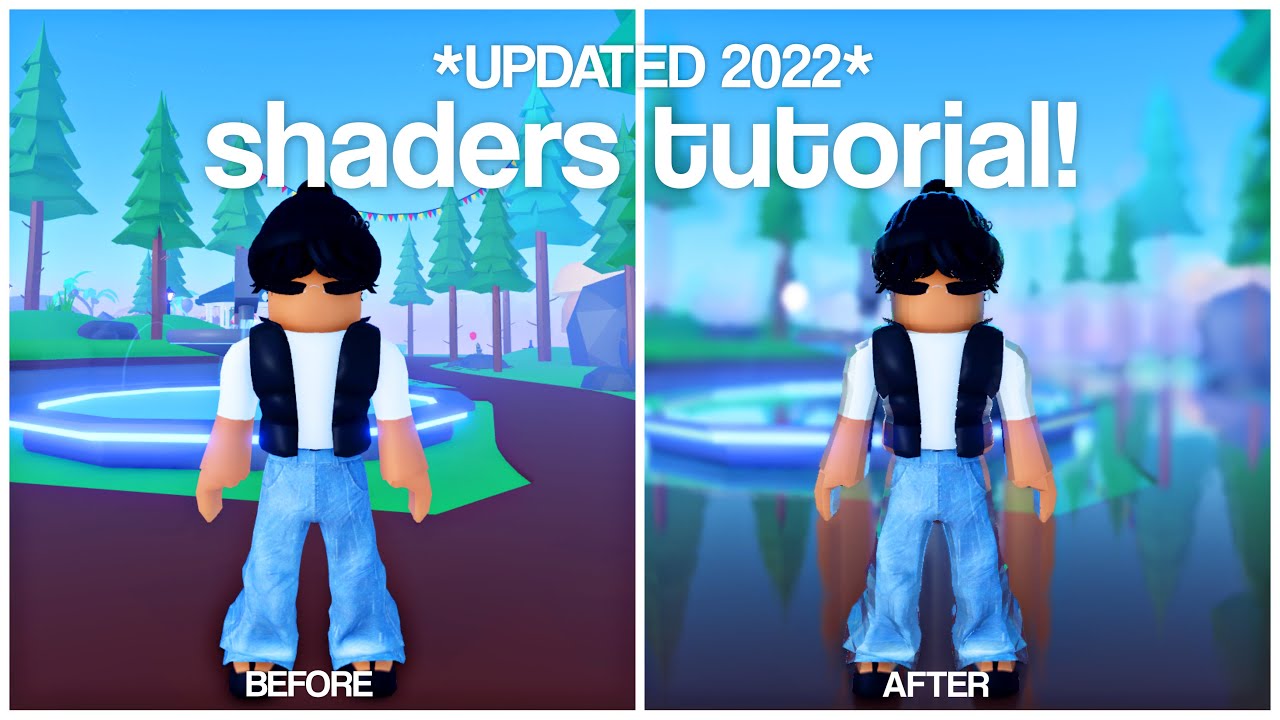
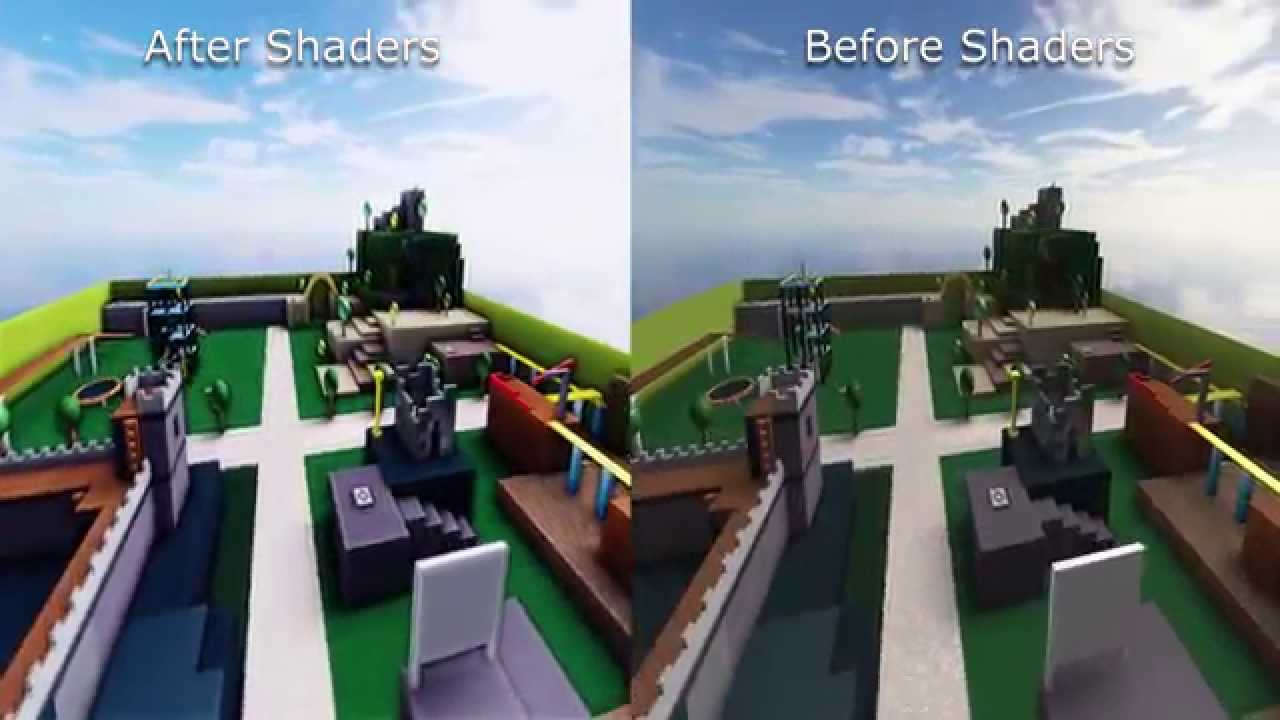


How To Get Shaders On Roblox 2025 WORKING NEW METHOD ANY GPU YouTube . How To Enhance Your Roblox Graphics With Shaders A Step By Step Guide . Roblox Shader Roblox Reshade Tutorial With Depth Effects . Ro Shaders Roblox How To Make Realistic Rain In Roblox . Amazing Roblox Shaders 2026 Easy Tutorial YouTube
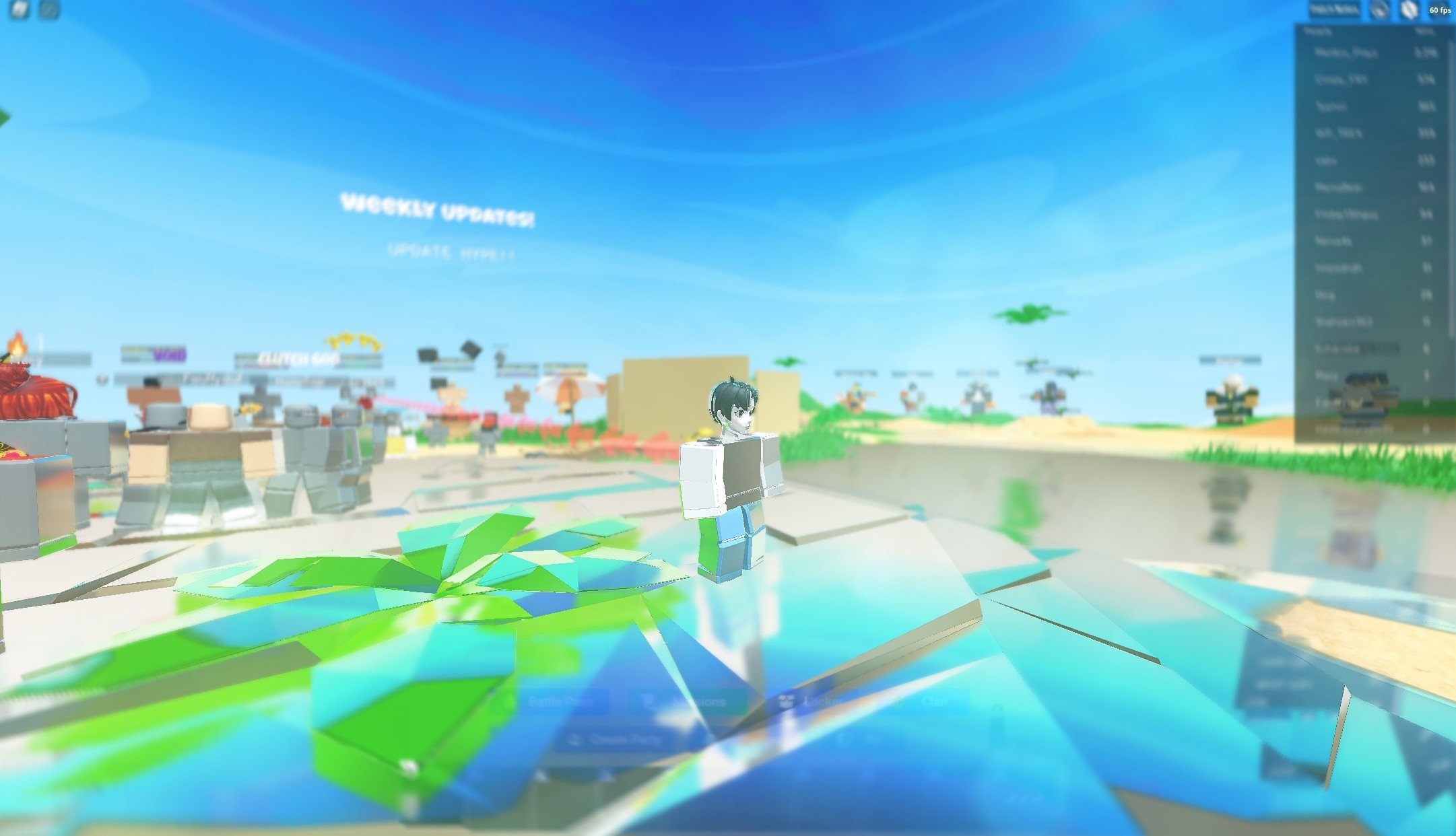


How To Install Shaders In Roblox With Reflections Tech How 6 Roblox Shaders . How To Get Roblox Shaders YouTube . HOW TO GET SHADERS ON ROBLOX AMD NVIDIA INTEL Full Guide YouTube . WORKING How To Enable Shaders In Roblox 2026 Roblox Tutorial YouTube . NEW HOW TO ENABLE SHADERS ON ROBLOX WORKING 2026 YouTube


NEWEST How To Enable Shaders In Roblox Still Working 2026 YouTube . WORKING How To Get SHADERS On Roblox 2026 Easy Tutorial YouTube . How To Fix Roblox Shaders Not Working YouTube . NEW How To INSTALL Roblox SHADERS Roblox Shaders . How To Get Shaders On Roblox 2023 Install Roshade Roblox Shader


Shaders Roblox The Most Realistic Roblox Game With Shaders . How To Get SHADERS On Roblox 2025 Install Roblox Shaders Full Guide . Shaders Roblox The Most Realistic Roblox Game With Shaders . How Do Get Shaders In Roblox 2024 YouTube Hqdefault . NEW HOW TO GET SHADERS ON ROBLOX WORKING 2026 YouTube


Feiertage 2025 Kanton Thurgau Steuern Bloxshade . DOES NOT WORK How To Install Shaders In Roblox 2023 YouTube . Shaders Roblox The Most Realistic Roblox Game With Shaders . How To Get My Roblox Shaders 2024 Working On All Graphic Cards YouTube . Shaders Roblox The Most Realistic Roblox Game With Shaders


Roblox Shaders What Are They How To Install Gamer Journalist Roblox Shaders . NEW HOW TO GET SHADERS ON ROBLOX IN 2026 WORKING YouTube . Roblox Shaders How To Install And Use The Best Tools In 2025 Roblox Shaders. Roblox Shaders How To Install And Use The Best Tools In 2025 Roblox Shaders 3.webp. How To Enable Shaders In Roblox 2026 NO LAGS YouTube




Full Tutorial On How To Enable Shaders In Roblox 2026 NEW WORKING . What Is Hypergolic Roblox And How Does It Work 2026 1200x1769 . Shaders For Roblox Download ROBLOX Shaders EHNCA . NEW How To Enable Shaders In Roblox Still Working 2026 YouTube . HOW TO GET SHADERS IN ROBLOX WORKING 2024 YouTube